OIDC Step-up Authentication
This guide shows how to enforce step-up authentication using OpenID Connect (OIDC) with Airlock Microgateway. Step-up is a general authentication concept: it raises the required authentication strength for selected actions or paths. Airlock Microgateway currently supports interactive authentication via OIDC, so this article describes how to implement step-up requirements based on OIDC authentication results (e.g., required scopes and ACR values).
The configuration steps below show how to extend the OIDC authentication setup with step-up requirements for selected subpaths. Configure OIDC authentication first as described in OIDC authentication, then add step-up rules in the access control policy for the paths that require stronger authentication (e.g., additional scopes or ACR values).
Do not confuse this feature with OAuth 2.0 step-up as described in RFC 9470.
- RFC 9470 defines step-up for OAuth 2.0, while this Microgateway implementation applies step-up requirements in the context of OIDC-based authentication (evaluating OIDC authentication results such as scopes and ACR values).
Prerequisites
- A Gateway Deployment.
- Session Handling must be configured.
- An
HTTPRouterouting traffic to your application. - A working OIDC setup as described in the OIDC Authentication use case.
Configuration
This section shows how to configure Airlock Microgateway with an access control policy that first enforces OIDC authentication for an application path and then adds step-up requirements for selected subpaths.
Create a baseline AccessControlPolicy resource
Start with a simple policy that requires OIDC authentication for /app/ and denies all other requests.
Add step-up requirements
- Extend the
AccessControlPolicywith step-up requirements: /app/confidential/requires the scope confidential./app/confidential/admin/additionally requires a stronger authentication level indicated by an allowed ACR value (example values:urn:<your-company>:acr:weakorurn:<your-company>:acr:strong).
- Configure step-up requirements in
authorization.ensured.oidc: ensured.oidc.scopes(required scopes)ensured.oidc.acrInValues(allowed ACR values)
- Define policies from most restrictive to least restrictive, so that more specific paths are matched first.
Validation
Validate step-up in a browser
Attempt to access endpoints behind the targeted HTTPRoute. If the configuration is correct, the following will be observed:
- Accessing
/app/triggers OIDC authentication (if the user is not authenticated). - Accessing
/app/confidential/requires the scope confidential according to the policy. - Accessing
/app/confidential/admin/requires the scope confidential and one of the configured ACR values. - If authorization succeeds, the request is forwarded to the back-end.
Validate step-up in Grafana
The built-in Grafana dashboard Airlock Microgateway Access Control - Logs provides step-up relevant details per request.
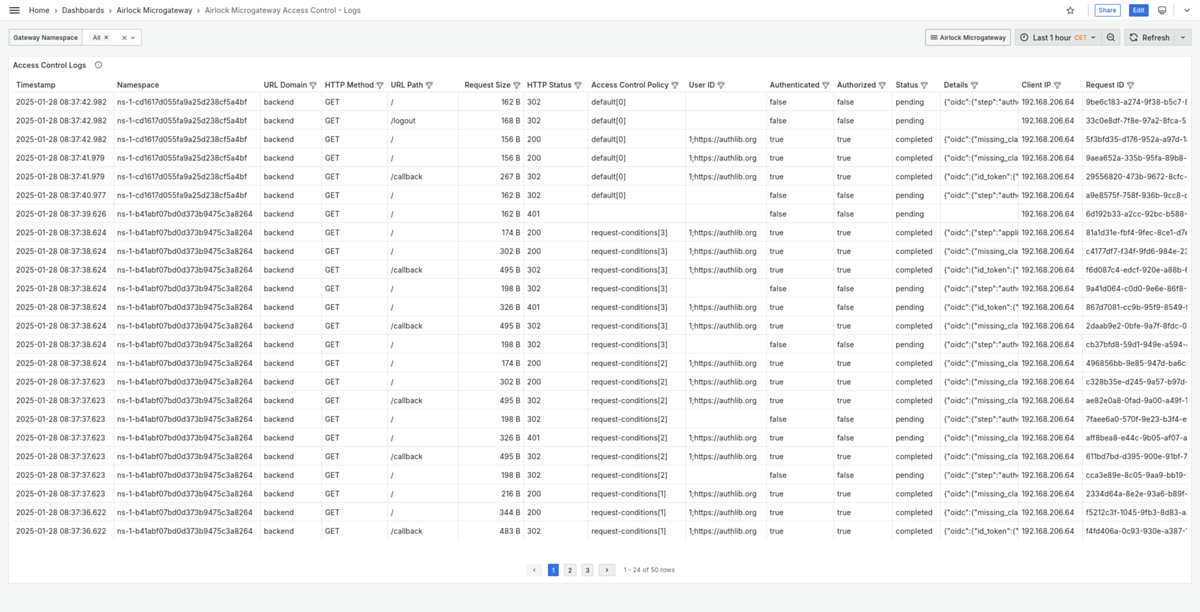
- Look at the Details column. It contains an OIDC-related JSON object, including fields such as
oidc.step,oidc.scopes, andoidc.acr_values. - Review
oidc.step. It categorizes the individual request within the OIDC flow: authentication-redirect- Microgateway redirects the client to the OIDC provider to start authentication.
authorization-grant-exchange- Microgateway processes the authorization response (e.g., an authorization code) and performs the token exchange to complete the flow.
application-access- The request is handled as an application request after authentication/authorization has been completed.
step-up-redirect- Microgateway redirects the client to the OIDC provider to satisfy additional step-up requirements (for example an additional scope or an ACR value).
- Review the resolved authentication results recorded at the end of the request:
oidc.scopeslists the scopes resolved in the session (e.g.,[ “profile”, "email" ]).oidc.acr_valueslists the ACR values resolved in the session (e.g.,[ "urn:airlock:2fa:pwd" ]).
These values reflect the session state at the end of the request. To verify what is effectively available for subsequent application requests, focus on entries where
oidc.stepisapplication-access.- Use the following example flow as a reference for what you typically observe in Grafana:
- The first unauthorized request issues an authentication redirect (
oidc.step: authentication-redirect). - After authentication, the user is redirected back to Microgateway to complete OIDC authorization by performing the authorization grant exchange (
oidc.step: authorization-grant-exchange). - The user is redirected back to the original URL and the request succeeds (
oidc.step: application-access). - When a request matches a policy that requires step-up (e.g., an additional scope or ACR value), Microgateway triggers step-up by redirecting to the OIDC provider (
oidc.step: step-up-redirect). - Microgateway completes OIDC authorization again by performing another authorization grant exchange (
oidc.step: authorization-grant-exchange). - The user is redirected back to the original URL and the request succeeds (
oidc.step: application-access). - After step-up completes,
oidc.scopesand/oroidc.acr_valuesinclude the additional scope and/or ACR value required by the policy.
- The first unauthorized request issues an authentication redirect (