Part 4 – Activating detection and response action (log-only mode)
After initial setup and model training, we activate anomaly Detection and Response in log-only mode while continuing to collect training data. This allows us to analyze the collected log messages, search for false positives, and tune Anomaly Shield detection if required without triggering any Anomaly Shield response actions.
For the initial configuration, the following settings are applied in the Anomaly Shield Application:
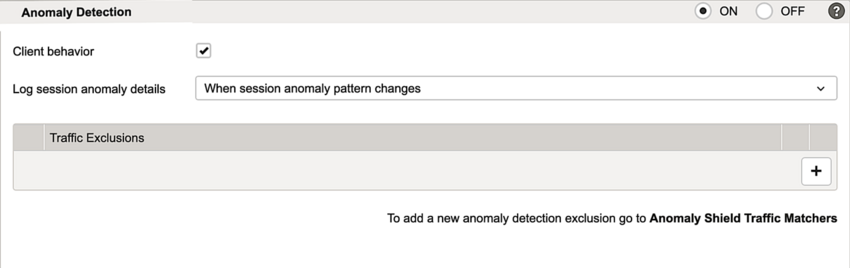
- Under Anomaly Detection, the Log session anomaly details option is set to When session anomaly pattern changes. This configuration will not clutter the logs but show all vital information to analyze sessions that are tagged as anomalous.
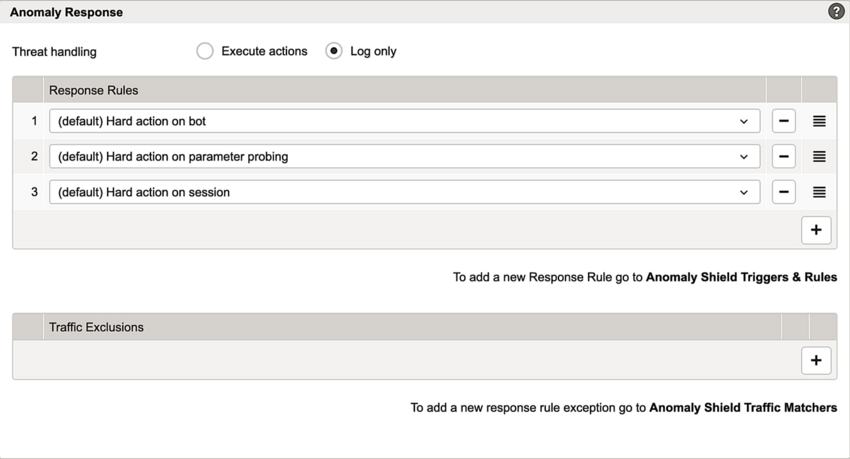
- Under Anomaly Response, the Threat Handling property is initially set to Log only. With Anomaly Shield activated, this configuration prevents any actions from being taken. The logging mode allows analyzing the behavior of triggers and rules and checking if there are no false positives.
- Airlock Anomaly Shield provides predefined default rules for common security scenarios. If you configured the optional custom rule in Part 3, it can be added in addition to the default rules.
Note that the processing order of rules is important because only the first matching rule will be applied.
- Go back to:
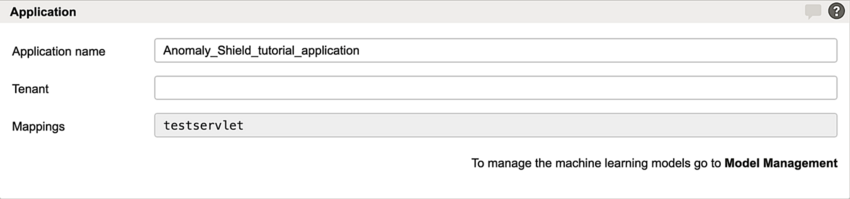
Application Firewall >> Anomaly Shield >> tab Applications - In the column Anomaly Shield Application, click on the application entry to open the application detail page.
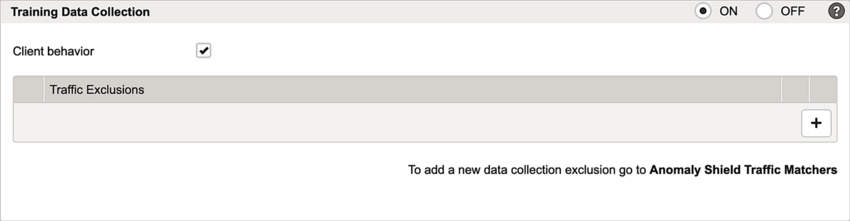
- Ensure that Training Data Collection remains enabled.
- When using automatic retraining, this continuously provides current training data and helps maintain model accuracy over time.
- In the section Anomaly Detection:
- Enable Anomaly Detection.
- Choose the log level When session anomaly pattern changes.
- Consider configuring an optional Traffic Matcher to exclude certain traffic from anomaly detection. For details, see Optional configuration of Traffic Matchers.
- In the section Anomaly Response, table Response Rules:
- Select Log only to enable Anomaly Shield threat logging without executing response actions.
- Add the predefined default Response Rules applicable to the application.
- If you configured the optional custom rule in Part 3, add it as required.
- Notice
Rules are processed in top-down order. The first matching rule will be used! The entries can be sorted by drag and drop.
- In the section Anomaly Response, table Response Rule Exceptions:
- Consider configuring an optional Traffic Matcher as response exception. See Optional configuration of Traffic Matchers
- A fully configured application may look like this:
- Activate the new configuration.
- Airlock Anomaly Shield evaluates the target back-end application traffic. Incidents are being logged.
- Wait until the anomaly protection has generated a sufficient number of log messages that can be used to verify that the anomaly detection is working as expected.
- When the logs show the expected anomaly detection rate, change the Threat Handling from log only to Excecute actions and activate the configuration.
- Airlock Anomaly Shield evaluates the target back-end application traffic and logs detected anomalies. The time required depends on the traffic volume and how frequently the protected back-end application is exposed to anomalous requests. Proceed with Part 5 – Analyzing threat handling settings once Anomaly Shield has collected enough anomalous traffic for a meaningful analysis.