Server certificate detail page
This article describes how to add a global SSL/TLS server certificate for virtual hosts. Configure the server certificate, the corresponding private key, and any required CA chain so Airlock Gateway can use the certificate for incoming TLS connections.
Tab – Basic
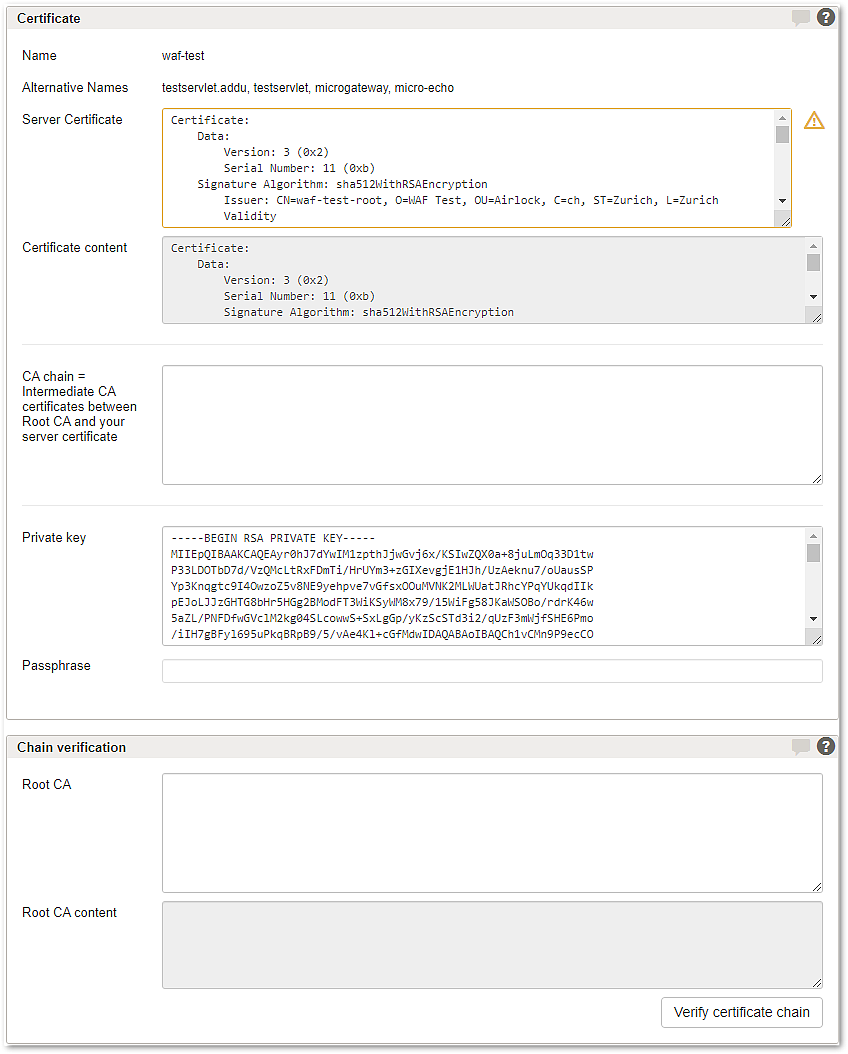
Section – Certificate
Configure the certificate material used by the virtual host for TLS connections. This includes the server certificate, the corresponding private key, and, if required, EC parameters and the CA chain.
- Paste the certificate in the Server Certificate field.
Example:
- Example
-----BEGIN CERTIFICATE-----
MIIDPjCCAqegAwIBAgIBATANBgkqhkiG9w0BAQQFADCCAQcxHzAdBgNVBAoT
aW9uIEFHIC0gSGVhZHF1YXJ0ZXIxHzAdBgNVBAMTFnBoaW9uIEFHIC0gSGVh
...
I3ejmeNxHhmlEsd2ORKLyh3ofIaXpEkbf+gsQeE6UaFE83a7VKXrbsS+1zzl
Tdd0ikPqLaOQ9CmjykNigfdgAAgAirlockE65g45rf34ERRRReed545fe5==
-----END CERTIFICATE-----
- When a Subject Alternative Name (SAN) certificate has been pasted, the domains covered by the SAN are displayed in the Alternative Names line.
- Optional: Place custom EC parameters below the text block of your certificate.
Example:
- Example
-----BEGIN EC PARAMETERS-----
BgUrgQQAIw==
-----END EC PARAMETERS-----
- For intermediate CA server certificates, paste the complete chain of intermediate CA certificates including the root CA into the CA chain field. All certificates must be Base64-encoded.
- For the Private key field:
- If you use an unencrypted Private key:
- Paste the key into the textbox.
Example:
- Example
-----BEGIN RSA PRIVATE KEY-----
MIIEpAIBAAKCAQEAutxnTm+4qp0pO/aqo5u8CMUQFuz2Ee2OdN3GV5dKyHop
efiTn9dsSO/XfXQtdBE9cz2qekspTHM/7rdwyhDcMNZoB0Mxm7MnAXA3tWg7
...
wMwB7LL/cy3BgPz338yOAI4Sg9HpJnAAUBx9AlicqtWxu+vlMVQhWXjAzTia
45zeBiPnEbittcDF7QfMCCvVnBWxAirlocktgp4tK2wNL1iF1wFMcw4Snw==
-----END RSA PRIVATE KEY----
- If you use an encrypted Private key:
- Paste the key into the textbox.
Example:
- Example
-----BEGIN RSA PRIVATE KEY-----
Proc-Type: 4,ENCRYPTED
DEK-Info: DES-EDE3-CBC,684AF7A6B96C1CF7

GvERCGotGQCLjG97zIF159AF0OSKj3khkql7DnYfO5Bg95afskQDK0jBKDFd
...
blTAST582u2LVZmP/lETW/l80h3NJvw7alPPiHD/JmRhZGPfXgsD1d4mn9T8
ka7nzc5HzqLuAfWs4IN9ofU/LhxXIAIRLOCK0Ii4pnE6+EI8CLi9GyivCw==
-----END RSA PRIVATE KEY-----
- Add the passphrase for the private key into the field Passphrase.
- The certificate material is configured. The certificate can now be selected and used by virtual hosts that require this TLS server certificate.
Section – Chain verification
Use the chain verification tool to check whether the configured certificate chain can be validated against the root CA certificate.
- Paste the Root CA certificate into the field.
- The certificate content shows up in the textbox Root CA content.
- Click Verify certificate chain to perform a validation of CA chain down to Root CA.
- If the verification succeeds, the certificate chain is valid and can be traced back to the specified root CA certificate.
Tab – References

The References tab lists all entities that reference the current certificate. The table contains the columns Type and Name. Each referenced certificate is listed only once. The entries are grouped by type and sorted alphabetically. Select a certificate name to open the detail view of the corresponding entity (e.g., the detail view of a virtual host).