Web content accessibility (WCAG)
Starting with version 8.6, public-facing functionality in the Airlock IAM Loginapp complies with the Web Content Accessibility Guidelines (WCAG) 2.2 Level AA.
This article explains:
- the WCAG standard,
- how Airlock IAM implements WCAG,
- how to enable WCAG mode, and
- which accessibility features can be configured.
What is WCAG?
WCAG defines international standards for making web content accessible to people with visual, auditory, motor, or cognitive impairments.
WCAG is based on four principles (POUR):
- Perceivable: Information must be presented in ways users can perceive (for example, text alternatives for images).
- Operable: User interfaces must be usable with different input methods, including keyboard-only navigation.
- Understandable: Content and navigation must be clear, predictable, and consistent.
- Robust: Content must work reliably with different browsers and assistive technologies such as screen readers and voice control tools.
Legal context
WCAG 2.2 Level AA is widely used as the benchmark for digital accessibility. It is referenced by accessibility regulations in many countries, including Switzerland, Germany, and the European Accessibility Act (EAA), which entered into force in 2025.
Conformance levels
WCAG 2.2 was released in 2023. The conformance levels A, AA, and AAA indicate increasing levels of accessibility, with AA being the widely recognized benchmark for digital accessibility worldwide (A represents the most basic level, while AAA represents the highest).
IAM level of compliance
Starting with IAM 8.6, nearly all public-facing functionality of the Airlock IAM Loginapp complies with WCAG 2.2 Level AA. This includes login pages, public and private self-service interfaces, and self-registration UIs.
The IAM Temporary Locking feature, enabled by default, temporarily locks users after unsuccessful authentication attempts. While active, screen reader users can continue navigating the login page, which may lead to confusion regarding the current authentication state. As a result, this feature does not fully conform to WCAG 2.2 Level AA. However, messages indicating the temporary lockout and failed login attempts are correctly announced.
Be aware that QR codes are not WCAG-compliant by definition. CAPTCHAs may also fail to meet WCAG requirements, depending on their configuration. It is therefore up to you whether to include these elements in your authentication flows and processes.
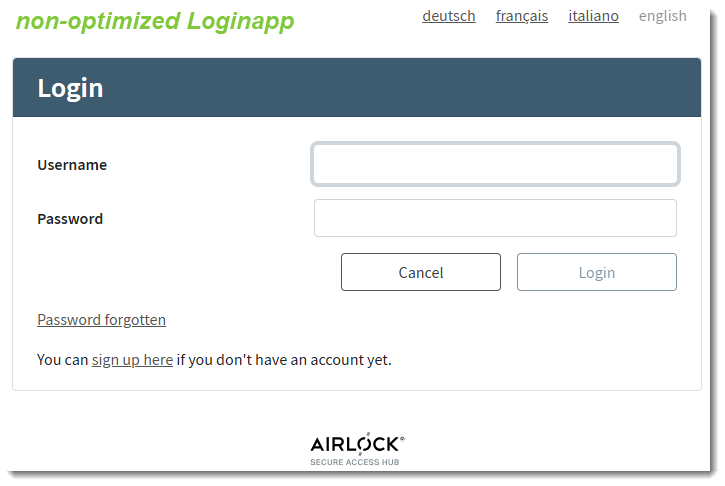
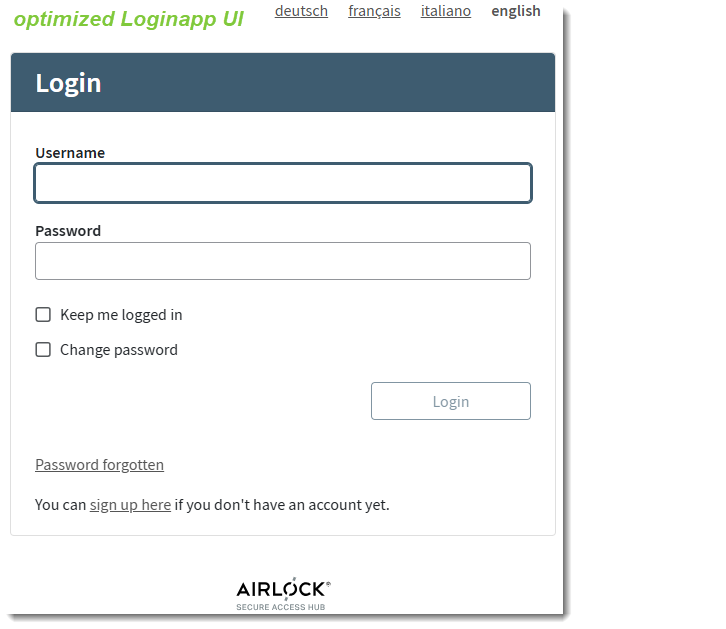
The following screenshots illustrate changes made to improve accessibility. In the WCAG-optimized version:
- the HTML structure ensures that all elements are correctly announced by screen readers,
- form labels are positioned above input fields to improve usability,
- spacing and color contrast are enhanced for better readability,
- full keyboard navigation is supported.
For more information, go to
WCAG in Airlock IAM
Starting with IAM 8.6, WCAG mode is enabled automatically for:
- new IAM installations, and
- upgraded installations that use the provided default Loginapp UI without any custom styling or modifications.
However, if you use customized HTML templates, you must enable the WCAG mode manually.
WCAG mode does not automatically enable all accessibility features available in IAM. Some features must be configured manually. Installations that use customized HTML templates must add all configurable WCAG features manually.
See below for an overview of the relevant features.
Keep in mind that the Loginapp Design Kit will be replaced in the future due to a change announced by Google in the underlying Angular framework. Any WCAG-related customizations made now will eventually need to be redeveloped in the new solution.
For more information, see Customization with Loginapp Design Kit.
How to enable WCAG mode manually
The WCAG mode of an IAM installation is defined by the config.build.accessibilityMode variable.
Starting with IAM release 8.6, this variable is included in the SDK configuration file custom.sdk.config.js.
Full file path: CUSTOM_DIRECTORY/src/sdk/config/custom.sdk.config.js
CUSTOM_DIRECTORY is the directory that contains the Loginapp customization files.
Accessibility modes
The config.build.accessibilityMode variable supports the following values / accessibility modes:
wcag:
The Loginapp UI complies with WCAG 2.2. This is the default mode for:- All new installations starting with IAM 8.6, and
- All older installations upgraded to version 8.6 or later and using the provided default Loginapp UI without any custom styling or modifications.
legacy:
The Loginapp UI partially complies with accessibility standards.
Note: Installations using customized HTML templates must add the config.build.accessibilityMode variable manually to their HTML templates and set it to wcag in order to be compliant with WCAG. Otherwise, IAM automatically switches to the legacy mode, which only partially complies with the accessibility standards.
To enable the WCAG mode manually:
- If you use customized HTML templates, add the
config.build.accessibilityModevariable to the templates. - Set the variable to
wcag: - Example
iam.api.sdk.config = function () { const config = { build: { // ... // This mode alters the HTML structure and base style to comply with the specified accessibility standard. // Affects the UI as shown in the SDK, as well as the resulting ZIP artifact. // Valid options are: 'legacy', 'wcag' // 'legacy': Legacy IAM style which partially complies with official accessibility standards (e.g. WCAG) // 'wcag': Style that fully complies with the Web Content Accessibility Guideline v2.2 accessibilityMode: 'wcag' }, // ... - Configure the required accessibility features. See the next section for details.
- WCAG support required some minor adjustments to parts of the HTML Document Object Model (DOM). If you use customized HTML templates, review them and adjust them if necessary.
Configurable accessibility features
This section provides an overview of the configurable accessibility features in the IAM Loginapp. All features must be manually configured for installations with customized HTML templates. For installations in WCAG mode, some features are enabled by default. This is marked in the overview.
Feature | Description | Enabled by default? | Link to instructions |
|---|---|---|---|
Readable title for initial login page | The initial title of an application's login page per default consists of an invisible special-character string that screen readers may not be able to read during the loading phase. | No | |
Field-specific error messages | If an end-user enters erroneous input, IAM by default returns a generic error message. However, users relying on screen readers need more specific feedback. | No | |
Landmarks for content sections | A landmark defines a navigational region on a page (for example header, main content, or footer). Landmarks allow assistive technologies such as screen readers to navigate to and find content quickly. | Yes The provided Loginapp UI by default contains landmarks for the page sections header, footer and main (content). | |
Skip links | Skip links allow keyboard and screen reader users to bypass repeated navigation and jump directly to a specific page section. | Yes The provided Loginapp UI by default contains skip links to the header, main content and footer sections of a page, for all default languages (English, German, French, Italian). Additional skip links must be configured manually. | |
Autocompletion | Autocompletion is a browser feature that automatically fills input fields using previously saved user data. | Yes The username, password and one-time password fields in the default Loginapp UI now support autocompletion. Autocompletion support for additional input fields must be configured manually. | |
Tab key navigation for the protected self-services portal | The protected self service portal now supports accessible navigation through the pages by using the tab key. Additionally, screen readers are able to announce the various page elements. | Yes |