Storing sensitive configuration values using the Config Editor
Use the Secure External Storage Manager - it can be opened in two ways:
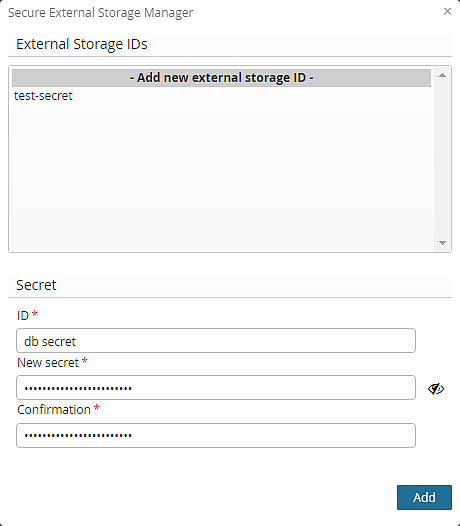
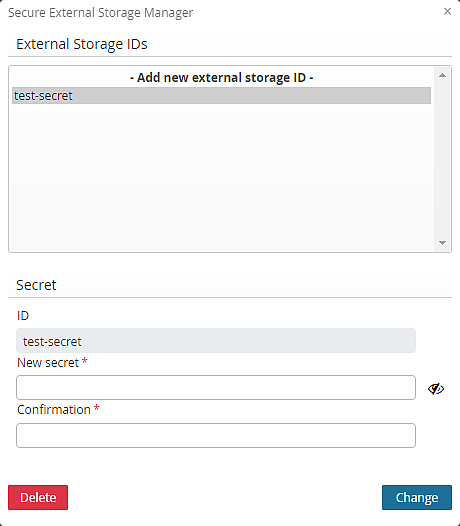
- Click on the button in the toolbar. The dialog supports adding, removing, changing, and deleting external secrets. External storage IDs available in the manager can then be referenced in the Change Password dialog to use them for a specific property.
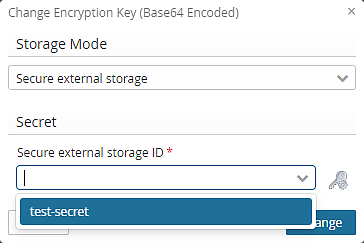
- Click on the button when editing a sensitive property. Subsequently, choose between Secure external storage (use this as the default choice), Config file (XML) - obfuscated (not encrypted), or Config file (XML) - plain from the Storage Mode drop-down. The storage IDs previously configured in the Storage Manager can be selected.


Notice
- Be aware that changing or deleting a secret may influence other IAM instances/installations that share the same external storage.
- The secrets that are edited by the manager are stored immediately.
- Previous versions of the secret values cannot be restored.
Info
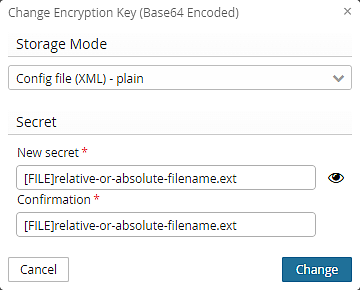
Individual secrets can be read from an external file. To reference an external file, use the [FILE] prefix followed by the relative or absolute path to the file containing the secret.
Syntax:[FILE]<relative-or-absolute-filename>.ext
Examples:
[FILE]/opt/secrets/my-secret-value.txt[FILE]instances/auth/my-other-secret-value.txt
Note:
- The Storage Mode must be Config file (XML) - plain.
- The file path must be set in both input fields. It must be set newly every time the external filename or path changes.
- Secret files are read only during activation or when IAM is restarted. Changes to the contents of a referenced file are therefore not detected or applied immediately.
- The referenced file must be readable by the process running Airlock IAM.