Geolocation feature
The Geolocation feature of Airlock IAM provides geolocation information based on the IP address of a client request. This information is typically used as input for risk-based authentication and the HTTP Request Information Map plugin.
This article explains how to configure the Geolocation feature. It also shortly describes the two main use cases.
Request flow
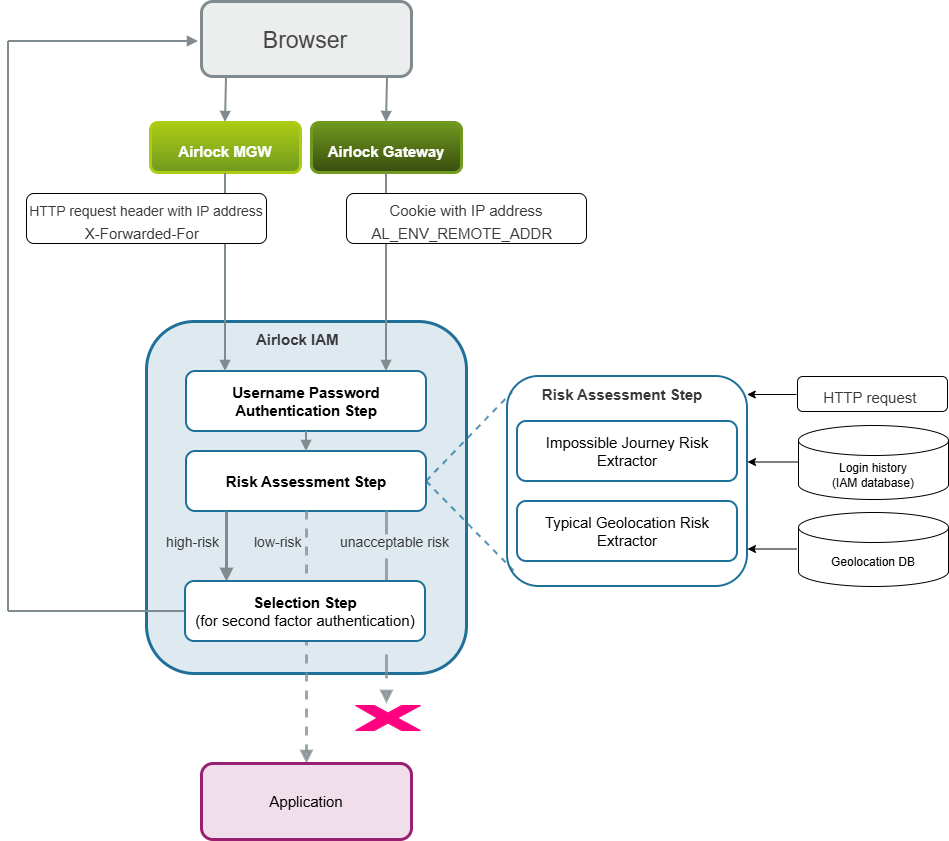
IAM determines the client’s original IP address from request context forwarded by Airlock Gateway or Airlock Microgateway. Depending on the setup, IAM retrieves the IP address as follows:
Component forwarding requests to IAM | Forwarding of client IP |
|---|---|
Airlock Gateway | Via the |
Airlock Microgateway | Via a configured HTTP request header, typically |
No Gateway/Microgateway integration is configured in the IAM Config Editor | IAM reads or uses the IP address of the system that sends the request directly to IAM. |
IAM then uses the configured geolocation provider to map the IP address to geographic information such as city and country. This information can be used, for example, in risk-based authentication or in the HTTP Request Information Map.
For an illlustration of the request flow, see the Use geolocation in risk-based authentication use case below.
Configuration
The sections below explain how to configure the Geolocation feature. This includes the following elements:
- If IAM is accessed through Airlock Gateway, Configure client IP forwarding from Gateway to IAM.
- If IAM is accessed through Airlock Microgateway, Configure client IP forwarding from Microgateway to IAM.
- In all cases, Configure the geolocation provider.
Configure client IP forwarding from Gateway to IAM
Gateway forwards the request IP address of the client via the AL_ENV_REMOTE_ADDR cookie to IAM.
Configuration in IAM
- Go to:
Loginapp >> Basic Settings - In the Gateway Settings field, add the Airlock Gateway Settings (Loginapp) plugin. Keep the default values.
- Activate your configuration.
- You have specified the Gateway settings for the IAM Loginapp. Proceed with the configuration of Airlock Gateway.
Configuration in Gateway
To enable IP-address-forwarding in Gateway, the Send environment cookies option must be enabled in the respective Gateway mapping. Check that this is the case:
- Open the Gateway Configuration Center.
- Go to:
Appication Firewall >> Reverse Proxy - In the Mapping column, select the mapping that connects the client host to your application's backend protected by IAM.
- Open the Mapping detail page. In the Basic tab of the Mapping detail page, go to the Application section. Check that the Send environment cookies property is enabled. If not, enable it.
- Activate your configuration.
- IAM can now retrieve the client IP address from the
AL_ENV_REMOTE_ADDRcookie sent by Airlock Gateway. The next step is to configure the geolocation provider. See Configure the geolocation provider.
Configure client IP forwarding from Microgateway to IAM
Airlock Microgateway uses HTTP headers to forward request information to IAM.
Configuration in IAM
- Go to:
Loginapp >> Basic Settings - In the Gateway Settings field, add the Airlock Microgateway Settings plugin. This plugin enables the parsing of HTTP headers, forwarded by Microgateway, for information on the incoming request.
- In the Airlock Microgateway Settings plugin dialog, go to the HTTP Request Client IP Extractor property. Check that the plugin HTTP Request Client IP Extractor - DEFAULT is set (default). If not, add a HTTP Request Client IP Extractor plugin. This plugin extracts the client IP address from the incoming request.
- In the HTTP Request Client IP Extractor plugin dialog, go to the HTTP Header Name property. This property defines the HTTP header whose value contains the IP address. The header name defined here must be identical to the HTTP header name configured in Microgateway's proxy. Check that
X-Forwarded-Foris set as header name (this is the default). - Notice
You could in fact enter any header name here as long as it matches the name set in Microgateway. However, we recommend using
X-Forwarded-For. This is the de-facto standard header name for identifying the originating IP address of a client connecting to a web server through a proxy server. - Activate your configuration.
- You have specified the Microgateway settings for the IAM Loginapp. Proceed with the configuration of Airlock Microgateway.
Configuration in Microgateway
- Next, you must define which request headers Microgateway should add before forwarding the request to IAM. You do this in Microgateway's custom resource (CRD)
HeaderRewrites. Set the following fields: Configure the
HeaderRewritesCRD- Field
HeaderRewrites.spec.request.add.custom.headers.name: Defines the name of the HTTP header to add. This name must be identical to the HTTP header name previously configured for IAM in the HTTP Header Name property of the HTTP Request Client IP Extractor plugin. The recommended header name isX-Forwarded-For.
- Field
- Field
HeaderRewrites.spec.request.add.custom.headers.value: Defines the value of the header, that is, the request IP address forwarded to IAM. Here, enter the following Envoy command operator:“%DOWNSTREAM_REMOTE_ADDRESS_WITHOUT_PORT%”.
Microgateway will forward the effective client IP determined after proxy processing. - Field
HeaderRewrites.spec.request.add.custom.mode: Defines the header addition strategy. Set the valueOverwriteOrAdd. This always adds the configured header and value (see above), even if a header with the same name already exists.
- Field
- Save your settings.
- IAM can now retrieve the client IP address from the specified HTTP header sent by Airlock Microgateway. The next step is to configure the geolocation provider. See Configure the geolocation provider.
For cloud deployments with an upstream proxy or load balancer, also consider the following notice. - Notice
Microgateway in Cloud setup
Depending on the cloud setup, Microgateway may not be directly connected to the client and may therefore see only the IP address of an upstream proxy or load balancer. In this case, a trusted upstream system that knows the effective client IP must forward it, for example in theX-Forwarded-Forheader.See the figure below. Here, system B terminates the secure TLS connection between itself and the client. So B should set or extend the
X-Forwarded-Forheader to MGW. Microgateway must be configured to trust B, and to use the address forwarded by B when determining the effective client IP.

Configure the geolocation provider
IAM uses a geolocation provider to deprive geographic information (such as city and country) from the client IP address. For this, IAM currently (Q3 2026) makes use of the free MaxMind GeoLite 2 database. This database is avaiable in binary database format, which you can download as *.mmdb file from the MaxMind website. There are two alternatives: the City and Country database.
Prerequisites
You need to have an account with MaxMind. For this, go to the MaxMind GeoLite sign-up page: https://dev.maxmind.com/geoip/geoip2/geolite2/
Install the GeoLite 2 database
- Go to the GeoLite download page (https://www.maxmind.com/en/accounts/<my-account-nr>/geoip/downloads).
- Download the GeoLite City or the GeoLite Country database as GZIP file (
.tar.gzarchive). - Extract the file and store the including
.mmdbfile in your IAM folder system, e.g.,/opt/GeoLite2/GeoLite2-City.mmdborinstances/auth/GeoLite2-Country.mmdb. - Note the path to the
.mmdbfile.
Configure the geolocation provider in IAM
- In the IAM Config Editor, go to:
Loginapp >> Basic Settings - In the Geolocation Provider field, add a MaxMind Geolocation Provider plugin. This plugin configures the geolocation provider based on the locally stored MaxMind GeoLite 2 City or Country database.
- In the MaxMind Geolocation Provider plugin dialog, in the Db File Location field, enter the path to the previously downloaded
.mmdbMaxMind database file. - Activate your configuration.
- You have now configured a geolocation provider and linked it with your
.mmdbMaxMind database file. IAM will automatically detect updates to the file.
Use cases
Use geolocation in risk-based authentication
In IAM, the geolocation feature is typically used for risk-based authentication. Based on the city and country derived from the client's IP address, IAM performs a risk assessment. In addition to geolocation information, the risk assessment may include factors such as the IP address range, the User-Agent header, or a client fingerprinting score.
Based on the combined results of the risk extractors, IAM determines the next step in the authentication flow. Depending on the assessed risk, this may be
- Continuation of the normal login flow
- Requiring a second-factor authentication step
- Providing only limitated access
- Blocking access entirely
IAM uses the Risk Assessment Step to assess the risk during an authentication process. The step is inserted into the sequence of authentication flow steps.
- For more conceptual information, see Risk-based authentication.
- For instructions on how to configure the Risk Assessment Step plugin, see Risk-based authentication in the Loginapp REST API/UI.
The figure below illustrates the use case:
Provide geolocation details with the HTTP Request Information Map
The HTTP Request Information Map plugin provides information about the current HTTP request. In addition to the client IP address, the Gateway session ID or the request URL, this plugin can also provide geolocation details such as latitude, longitude, city, country and continent. As a prerequisite, a geolocation provider must be configured.
To provide the geolocation data, the plugin uses the following keys:
client-latitude: Geographical latitude coordinate (WGS84) of the client based on its IP.client-longitude: Geographical longitude coordinate (WGS84) of the client based on its IP.client-continent: Continent of the client based on its IP.Two-character contitent code:
- Asia: AS
- South America: SA
- North America: NA
- Africa: AF
- Europe: EU
- Antarctica: AN
- Oceania: OC
client-country: Country of the client based on its IP. Two-character ISO 3166-1 ALPHA-2 code.client-subdivision: Geographical subdivision of the client based on its IP. Up to three characters describing the subdivision part of the ISO 3166-2 code (state/district/canton, ...).client-city: City of the client based on its IP.client-zip: Postal code (ZIP) of the client based on its IP.client-timezone: Time Zone of the client based on its IP.