Reliable event delivery
Multiple IAM plugins produce events that can be consumed, for example by event subscribers to notify recipients about actions such as password changes or locked user accounts.
By default, events are not persisted. If an error occurs during the event processing or delivery, the event may be lost. To prevent this, events can be stored in an outbox repository (database table). An Event Outbox Processor Service continuously reads events from the outbox and forwards them asynchronously to a message broker. This guarantees that events are delivered reliably, even in case of temporary failures.
This article explains how to configure reliable event delivery.
Performance considerations
Reliable event delivery consumes additional system resources. Before enabling this feature, you should:
- Be selective about which events you want to persist in the outbox.
- Verify that the resulting system load is acceptable.
The next diagram shows the reliable event delivery process:
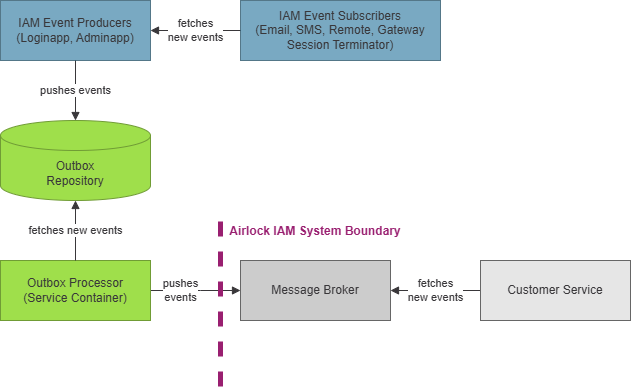
The outbox repository is a relational database table that stores the events in JSON format. A JDBC connection pool is used to connect to the database. IAM provides the scripts required to extend your database schema. It is mandatory to update the database schema before reliable events can be used.
We recommend using the same outbox repository for all IAM modules (Loginapp, Adminapp, and Service Container).
Known limitations
Reliable event delivery is an additional channel for event delivery and does not change the existing solutions for event producers and event subscribers.
These are known limitations of the current solution:
- Event subscribers only work with current event producers in the Loginapp and Adminapp. It is not possible to combine reliable event delivery with current event subscribers.
- Event producers in the Service Container only work with the outbox DB and not with current event subscribers.
- Message brokers are outside the scope of Airlock IAM. Customer must deploy them separately or they may choose to integrate IAM with an existing message broker.
JSON-formatted events
The reliable event delivery supports processing and delivering only JSON-formatted events. The following is an example of a supported event:
{
  "eventId": "dab0a59d-cc64-4dab-b85a-bbbb0d27bedd",
  "eventType": "AUTHENTICATION_FLOW_SUCCESSFULLY_COMPLETED",
  "occurredAt": "2026-03-30T13:03:17.020+02:00",
  "data": {
    "userId": "itester",
    "authenticationMethods": ["PASSWORD"]
  },
  "source": {
    "stepId": "pwcheck",
    "configurationContext": "[DEFAULT]",
    "application": "loginapp",
    "sourceType": "flow",
    "flowId": "default",
    "flowType": "AUTHENTICATION_AND_AUTHORIZATION"
  },
  "customData": {
    "provided-username": "itester",
    "user-id": "itester",
    "client-ip": "127.0.0.1",
    "session-id": "512130503374609790"
  }
}
Configuration of reliable event delivery
The configuration of a reliable event delivery contains the following steps:
- Specify the outbox settings, for the Loginapp, the Adminapp, and the Service Container. For details, see Specifying the outbox settings.
- In the Service Container, configure the Event Outbox Processor Service. This service forwards events from the outbox to a message broker. This step includes:
- Selecting a message broker. Currently (Q2 2026), only Azure and Kafka are supported.
Note: It is possible to route different event types to different brokers, if required.
- Specifying optional delivery settings, such as the batch size and sending interval. If nothing is configured, the default values are used.
For details, see Configuring the Event Outbox Processor Service.
Specifying the outbox settings
Specifying the outbox repository is identical for the Loginapp, Adminapp and Service Container. However, additional options can be configured separately for each IAM module. The instructions below first explain how to configure the outbox repository, followed by the module-specific configuration options.
Note: We recommend using a single outbox repository for all modules. To achieve this, configure the Outbox Repository plugin in one module (e.g., the Loginapp), and then reference that same plugin from the other modules.
The following instructions demonstrate how to configure the Outbox Repository plugin in the Loginapp and reference it from the Adminapp and Service Container.
Perform the next steps:
- In the Config Editor, go to
Loginapp >> Event Settings >> Outbox Settings section - In the Outbox Repository field, create and edit an Outbox Repository plugin as follows:
- Enter a suitable name for the plugin in the Display Name field, for example “Event Outbox Repository”.
- In section Basic Settings, in field SQL Data Source, create and edit a JDBC Connection Pool plugin. This plugin is used to connect the IAM modules to the outbox. Configure the plugin in line with your DB setup and requirements.
- For more information on relational DBs, see Relational databases for IAM.
- Specify the optional settings in Advanced Settings, if required.
- You have now configured the Outbox Repository plugin for reliable event delivery.
- Now go to
Adminapp >> Event Settings >> Outbox Settings section - In the Outbox Repository field, select the Outbox Repository plugin defined previously for the Loginapp. In our example, this is the “Event Outbox Repository” Outbox Repository plugin.
- Next, go to
Service Container >> Event Settings section - In the Outbox Repository field, select the Outbox Repository plugin defined previously for the Loginapp. In our example, this is the “Event Outbox Repository” Outbox Repository plugin.
- You have now specified the outbox repository for all modules.
- Next, set the additional outbox options in the Outbox Settings section (Loginapp/Adminapp) or Event Settings section (Service Container), respectively. The table below lists the configuration options per IAM module.
IAM Module
Additional configuration options
Description
Loginapp
Include Generic Step Result Events checkbox
Enable this checkbox to also store events generated by generic steps.
However, before also including generic step result events, consider the following:
- Generic step result events occur more frequently than other event types, and
- they are usually of less interest to external event consumers.
Custom Outbox Data list
Defines value map providers that add additional data to the events stored in the outbox repository.
Currently, the following value map providers are available:
- Authentication Data Map: Provides data on the successful authentication of the current end-user.
- Context Data Map: Provides all context data of the current end-user.
- HTTP Request Information Map: Provides information about the current HTTP request.
- Roles Provider: Provides a list of roles.
- User Identity Map: Provides identity information on the current end-user.
- User Statistics Map: Provides some login statistics of the current end-user.
Adminapp
Add Context Data checkbox
Enable this checkbox to add context data on the managed end-user to the events stored in the outbox repository.
Service Container
User Store field
Defines a user store from which context data values will be added to the stored events. Note that these values might contain sensitive information such as email addresses or phone numbers. If required, select the user store relevant for your setup.
- You have now configured the outbox settings for all modules.
Configuring the Event Outbox Processor Service
The Event Outbox Processor Service continuously reads events from the outbox and forwards them asynchronously to a message broker.
To configure the Event Outbox Processor Service, perform the next steps:
- In the Config Editor, go to Service Container
- In the Basic Settings section, in the Services list, create and edit a new Service plugin.
- In the Service plugin, in the Service field, create and edit a new Event Outbox Processor Service plugin, as follows:
Event Outbox Processor Service plugin
- In section Basic Settings, in the Outbox Repository field, select the Outbox Repository plugin previously created for the IAM modules that write events in the outbox (see Specifying the outbox settings; in our example, this is the “Event Outbox Repository” Outbox Repository plugin).
- In section Basic Settings, in the Message Broker Selectors list, define a list of message brokers to which to forward the events. Currently (Q2 2026), only Azure and Kafka are supported. You can route different event types to different brokers, if required.
Per message broker, create and edit a Message Broker Selector plugin, as follows: Message Broker Selector plugin
- In the Event Type Pattern field, specify the event types to be sent to the message broker configured here.
- To send all event types to the current broker, enter the regular expression
.* - To send only specific event types to the current broker, enter the relevant event type codes in the field as a regular expression. For example:
AIRLOCK_2FA_DEVICE_ACTIVATEDUSER_.*AIRLOCK_2FA_DEVICE_ACTIVATED|AIRLOCK_2FA_DEVICE_DELETED|USER_.*
For the complete list of event types (and corresponding event producers), go to Event producers.
- To send all event types to the current broker, enter the regular expression
- In the Message Broker field, specify the relevant message broker. Currently, only Azure and Kafka are supported. Create and edit the corresponding Message Broker Connector plugin as follows:
- For an Azure message broker, select the Azure Message Broker Connector plugin. This connector sends the events to the Azure Event Hub. For details on the setup and configuration of an Azure Event Hub as well as the required authentication infrastructure, see Azure Event Hub documentation.
- For a Kafka message broker, select the Kafka Message Broker Connector plugin. This connector sends the events to a so-called Kafka topic. Each entry in the topic is called a record. The connector uses the Apache Kafka Java client library to produce the records and forward them to the Kafka topic. For details on the setup and configuration, see the Kafka producer configs documentation.
- Return to the Message Broker Selectors list in the Event Outbox Processor Service plugin. If required, create and edit additional Message Broker Selector plugins.
- Go to the Advanced Settings section of the Event Outbox Processor Service plugin to specify optional settings of the event message delivery. If nothing is configured, the default values are used.
Available options:
- Batch Size property: Defines the number of processed events during each run. One run includes reading from the repository, forwarding the messages and cleanup. The default batch size is 1000.
- Min. Interval [ms] and Max. Interval [ms] properties: Define the time range between batch transmissions. If a batch finishes within the minimum interval, the system waits for the remaining time before starting the next. If processing takes longer than the minimum interval, the next batch begins immediately.
Error handling: If a batch fails entirely, the wait time doubles (exponential backoff) until it hits the maximum interval. Upon the first successful message delivery, the interval resets to the minimum value.
Default values: 500 ms. for Min. Interval [ms], 10000 ms. for Max. Interval [ms].
- You have now specified the Event Outbox Processor Service plugin. Return to the Service plugin.
- Enable the Auto Start checkbox in the Service plugin to automatically start the Event Outbox Processor Service upon server start.
- You have now configured the Event Outbox Processor Service.
Kafka configuration logging
The logging of the Kafka Message Broker Connector plugin is handled by a Kafka library. As a result, you cannot simply change the log level from INFO to DEBUG when the plugin is not working and you want to inspect the effective configuration.
As a workaround, you can log the final resolved configuration properties of the Kafka Message Broker Connector to stdout.
To do this, add the following logger to instances/auth/log4j/all-modules.xml:
<Logger name="org.apache.kafka.common.config.AbstractConfig" additivity="false" level="INFO">
    <AppenderRef ref="CONSOLE"/>
</Logger>
This causes Kafka to print all effective producer configuration values (including resolved defaults) at INFO level.
The output is produced in the following situations:
- When the first event is sent via the Kafka Message Broker.
- When the testlet of the Kafka Message Broker Connector plugin is executed.
Further information and links
Internal links: