Use case
Online QR code authentication
This article explains on a conceptual level how Airlock 2FA online QR code authentication works. It also provides important detailed information for correct use and configuration.
Goal
- Understand online QR code authentication in general.
- Understand the interaction between involved components.
- Learn details about the prerequisites and limitations of online QR codes.
All following procedures are exemplary and will vary according to your setup or needs.
Initial thoughts
Online QR code authentication combines a great user experience with high security. It displays a QR code that the end-user scans with the authenticator app. After the end-user approves or declines the authentication attempt, they are automatically logged in - without the need to enter a one-time code or similar input.
Short-lived online QR codes
In addition to the default online QR codes, IAM also supports short-lived QR codes that expire after a short time. This reduces the time window in which an attacker could try to persuade victims to forward the QR code.
Short-lived online QR codes are configured in the Short-Lived Online QR Code Settings section of the following plugins:
- Airlock 2FA Authentication Step
- Airlock 2FA Approval Steps:
- Airlock 2FA Transaction Approval Step
- Airlock 2FA Public Self-Service Approval Step
- Airlock 2FA Self-Service Approval Step
- Airlock 2FA Activation Step
You can:
- Enable short-lived online QR codes (disabled by default).
- Set the validity time (in seconds). This setting defines how long each short-lived QR code remains valid (default: 10 seconds).
- Set the overlap time (in seconds). This settings defines how long the current and next QR code are both valid (default: 3 seconds). This overlap ensures that ongoing requests can complete and that a valid QR code is always available, even during transitions.
Short-lived QR codes currently only work with 2FA apps based on the Futurae SDK. The Airlock 2FA app does not support this feature yet.
Combining with additional authentication
Online QR code authentication can be combined with additional factors such as fingerprint scanning, face recognition, or a PIN, depending on the smartphone's capabilities and the confiuguration of the authenticator app.
Airlock 2FA supports a range of authentication methods. We recommend reviewing these options to determine which ones best fit your requirements. For further information, see Authentication factors.
Prerequisites
- Requires an Airlock 2FA Essential subscription.
- User account exists in IAM.
- The user has Airlock 2FA enabled as a possible authentication method.
- Online QR code login is enabled in the Airlock 2FA configuration.
- The user has installed the Airlock 2FA app on the smartphone.
- The user's smartphone is connected to the internet and is able to connect to the Futurae cloud.
Online QR code authentication flow
The following flow chart shows how online QR code authentication works in general:
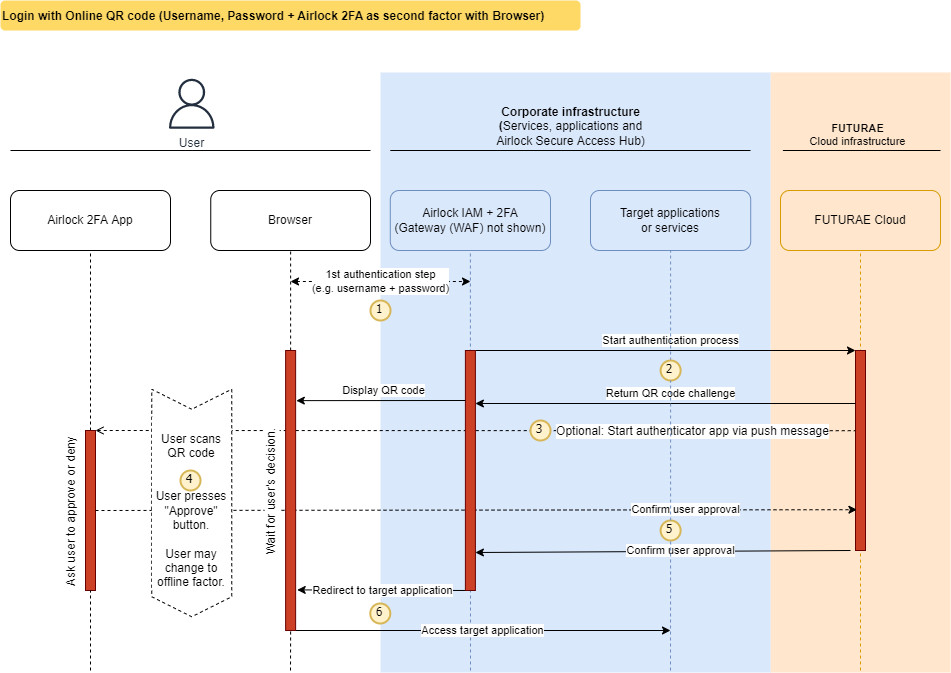
(1) | The user is identified by IAM (e.g., by entering username and password in the browser). |
(2) | IAM starts an authentication session with the Futurae cloud and retrieves a QR code challenge. Note that no device needs to be selected by the end user. |
(3) | Optionally, the Futurae cloud may send a push message to all devices of the user in order to open the app on the mobile phone. Note that this is a feature of the Futurae cloud and needs to be enabled in the Futurae service. It cannot be configured in Airlock IAM. |
(4) | The end user scans the QR code with the Airlock 2FA app and is asked to approve (or deny) the authentication step. The smartphone must be unlocked. Depending on the smartphone's capabilities and setup and the used app this may involve a PIN, fingerprint, or face recognition.
|
(5) | The Airlock 2FA app sends the user's decision (approval, denial) to the Futurae cloud. The Futurae cloud receives this authentication result and forwards it to Airlock IAM. |
(6) | IAM automatically redirects the user's browser to the intended target application or service. |
Further information and links
- The online QR code Airlock 2FA factor may also be used for transaction approval (requires an Airlock 2FA Advanced subscription) and to verify user self-services.
Internal links: